Sessions run entirely in the browser. There is no software to install, no plugin to approve, and no account for clients to create before they can join.
Every install requirement is a place a session can fail. A caregiver joining from a borrowed tablet between school pickup and dinner will not download an application, and a school-issued device often will not let them.
Because Blink Session runs in the browser, joining is a single tap on a link. You spend the first minute of the appointment doing therapy rather than walking someone through an installer.
Interactive Online Sessions
Forward Join Link
Easily forward join links to substitute staff for seamless session coverage and delegated client access.
Keep your sessions running smoothly when plans change. Staff can forward join links with custom time windows and verify client access permissions for substitute coverage.
Interactive Online Sessions
Multiplayer Therapy Games
Games both of you play together, customized to the therapy or educational goal you are targeting and themed to the client in front of you.
A game the client watches you play is a video. A game you play together is a session. Blink Session's games are genuinely multiplayer, so the client takes turns, makes choices, and sees the consequences.
Each game can be built around the goal you are actually working on and re-themed for the client's interests, which is what keeps a young client engaged through a full block of trials rather than the first five.
Interactive Online Sessions
Multiplayer Session Widgets
A shared calculator, dice, spinner, timer, coin toss, fireworks, and rock paper scissors, all usable by every participant in the room.
The small tools a clinician reaches for constantly in person are the ones that vanish first over video. A spinner to pick the next target, dice to decide how many trials, a timer to bound an activity, fireworks to celebrate a win.
Every widget is shared rather than screen-shared, so the client can spin, roll, and press the button themselves. That turns a transition into a turn.
Interactive Online Sessions
Co-Controllable Virtual Browser
A virtual web browser inside the session that you and your client can both control. Leave traditional screen sharing behind.
Screen sharing a website is a one-way broadcast: you click, they watch, and the video compresses the text into mush. It also exposes whatever else is on your screen.
The virtual browser is a real browser running in the session that either of you can drive. The client can navigate an activity, type into a form, or click through a reading passage themselves, at full fidelity, without you handing over control of your actual computer.
Interactive Online Sessions
Custom Whiteboard with Auto-Save
A shared whiteboard that saves itself automatically and supports embedded images and PDFs, so your own materials become interactive.
Model letter formation, map out sentence structure, sort images into categories, or annotate an exercise diagram, with the client drawing alongside you rather than watching.
Embedding images and PDFs means a worksheet you already use becomes something the client can write directly onto. Auto-save means multi-week work carries forward instead of being wiped when the session ends.
Interactive Online Sessions
Document Camera and Screen Sharing
Bring physical materials into the session with a document camera, and share your screen when that is genuinely the right tool.
Not everything is digital. A document camera lets you put a physical card deck, a manipulative, or a handwriting sample under a lens and have the client see it clearly.
Traditional screen sharing is still there for the cases that need it, and you can share a single window rather than your whole desktop when other client information is open.
Interactive Online Sessions
Resource Catalog and Org Sharing
A searchable catalog of session resources, with the ability to share what you build across your whole organization.
Clinicians build good materials and then lose them in a personal folder. A shared catalog means the activity one therapist builds on Tuesday is available to the whole practice on Wednesday.
For a group practice or district this compounds: on-boarding a new clinician means handing them a library the team has already validated, rather than asking them to start from nothing.
Interactive Online Sessions
AI Resource and Theme Creation
Generate new resources and re-theme existing ones, so material can be tailored to a specific client in seconds rather than an evening.
The reason clinicians reuse the same materials is time, not preference. Building a themed activity from scratch for one client is an hour you do not have.
AI creation tools collapse that: describe the target and the theme and get usable material back, then adjust it. A client obsessed with trains gets train-themed articulation practice without anyone staying late.
Interactive Online Sessions
Granular Participant Controls
Control exactly what each participant can do: microphone, camera, chat, cursor, virtual backgrounds, and remote control.
Sessions rarely contain only you and one client. A caregiver, an interpreter, a sibling in the background, a supervising clinician, and a co-treating provider all need different capabilities.
Per-participant control means you can mute a noisy room, disable chat for a group that would abuse it, hand cursor control to one client while others watch, or grant remote control briefly and then take it back, all without ending the session.
Interactive Online Sessions
Session Recording and Clips
Record a full session, or capture a short clip of a single video feed, then play it back immediately or in a later session.
Clips are the feature clinicians underestimate. A ten-second capture of a client producing a target sound correctly can be replayed to them on the spot, shown to a caregiver, or brought back three weeks later to demonstrate progress.
Full recordings support supervision, documentation, and shared review. Recording is deliberate rather than automatic, and obtaining documented consent from the client or guardian first is your responsibility -- several states require every participant to agree.
Interactive Online Sessions
Resource Recommendations
Resources surface automatically based on how the client and the materials are tagged, so planning becomes selection rather than searching.
Client tagging and resource tagging work against each other: once a client's goals and interests are recorded and materials carry the same vocabulary, the platform can propose the intersection.
The practical effect is that opening a session with a client whose goal is /r/ in the final position and whose interest is dinosaurs produces a shortlist immediately, instead of a search box and a blank memory.
Interactive Online Sessions
Pick Up Where You Left Off
Every resource and tool used in a session is tracked, including minutes spent, so the next appointment starts from where the last one ended.
Remembering which of six activities you got through, how far into it you were, and what you had planned next is the invisible administrative load of a full caseload.
Because resource and tool usage is recorded automatically along with time spent, the next session opens with that context already present. It also means the data supporting a progress note is captured as a by-product of doing the work.
Interactive Online Sessions
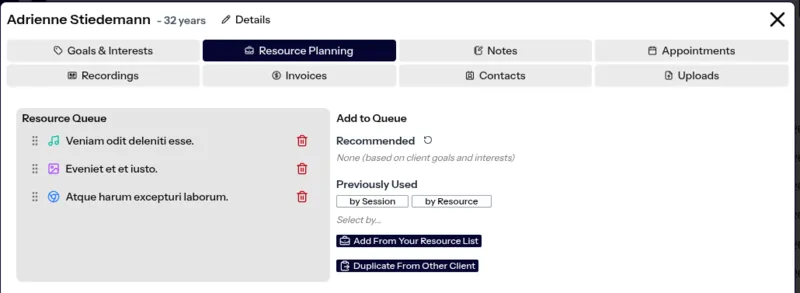
Session Planner with Resource Queue
Line up the resources you intend to use before the session starts and work through the queue during it.
Dead air is the enemy of a remote session. Any pause while you hunt for the next activity is a pause in which a young client's attention goes elsewhere.
Queuing materials in advance means transitions are a click. It also makes it realistic to over-plan, which you should: remote sessions consume material faster than in-person ones.
Interactive Online Sessions
Virtual and Blur Backgrounds
Blur or replace your background to keep the focus on the session and to keep your own space private.
Clinicians increasingly work from home, and a background is a disclosure. Blur and replacement give you a professional frame without renting an office.
Backgrounds are also a participant permission, so you can allow them for staff and disable them for clients where they would become a distraction.
Interactive Online Sessions
Observe Sessions Invisibly
Join another therapist's session as an invisible participant, for supervision, training, or clinical review.
Supervision by report is weaker than supervision by observation, and a visible observer changes the session being observed -- particularly with children, who will play to whoever just appeared on screen.
Invisible observation supports genuine supervision of clinical fellows and assistants, on-boarding new staff by watching an experienced clinician work, and reviewing a session where something is not progressing.
Interactive Online Sessions
In-Session Chat, Saved to History
Chat during the session, with the transcript retained in the session history rather than disappearing when the room closes.
Chat carries the things that are awkward to say aloud mid-activity: a spelling, a link, a quiet note to a caregiver, a prompt to an interpreter.
Retaining it in the session record means it is available afterwards for documentation and review, instead of being lost the moment the room closes.
Interactive Online Sessions
Session Audit Overview
A complete record of each session: when every participant entered and left, which resources and widgets were used, the chat history, and any recordings.
This is the difference between believing a session happened as documented and being able to show it. The audit view reconstructs the appointment: arrival and departure times for every participant, every resource and widget touched, the chat transcript, and links to recordings.
It matters for billing disputes, supervision, and any audit where you need to substantiate attendance and service delivery rather than assert it.
Interactive Online Sessions
Waiting Room
Clients and observers wait until admitted. Staff can add them to the session in progress, or move into a new session with them.
A waiting room prevents the worst failure mode of back-to-back remote appointments: one family walking in on the end of another family's session.
Beyond gatekeeping, it gives front-desk staff somewhere to work. A request arriving mid-session can be admitted to the current room when appropriate, or taken into a new session, without interrupting what is already happening.
Scheduling & Reminders
Automatic Timezone Conversion
Appointment times are shown in each person's own timezone, for both staff and clients, automatically.
Teletherapy removes geography, which means timezones arrive immediately: the moment you see a client across a state line, or hire a clinician who works from another one.
Every participant sees the appointment in their own local time. This eliminates the most common and most expensive scheduling error in remote practice, where a client arrives an hour late having done the arithmetic themselves and got it wrong.
Scheduling & Reminders
Advanced Recurring Appointments
Build the standing weekly appointments that make up a therapy caseload, with the flexibility real schedules require.
Most therapy is a standing appointment at a consistent time, which is also what produces the best attendance -- a fixture is easier to keep than something to remember.
Recurring tools handle the realities around that: school terms, holidays, a clinician's leave, a client moving to fortnightly, and the need to change one occurrence without unpicking the series.
Scheduling & Reminders
Color-Coded Multi-Staff Schedule
View several clinicians at once on a color-coded calendar with note-completion indicators and drag-and-drop rescheduling.
A practice manager needs to see the whole operation, not one calendar at a time. Simultaneous multi-staff view shows where capacity is, who is overloaded, and where a client could be fitted in.
Note-done indicators surface outstanding documentation directly on the schedule, which is where it is actually actionable. Drag and drop turns a reschedule into a gesture rather than a form.
Scheduling & Reminders
Custom Appointment Types and Cancel Reasons
Define your own appointment types and cancellation reasons so reporting reflects how your practice actually works.
Reporting is only as good as the categories underneath it. "Cancelled" tells you nothing; "cancelled, client illness" versus "cancelled, clinician unavailable" versus "no-show" tells you what to fix.
Controlling appointment types the same way means an evaluation, a treatment session, a parent consultation, and a screening can be counted separately, which is what makes utilization and outcome reporting meaningful rather than decorative.
Scheduling & Reminders
Client Cancellation Controls
Decide precisely whether and how clients can cancel their own appointments, including notice windows.
Self-service cancellation cuts administrative load but, left unrestricted, it also lets a client cancel ten minutes before a slot you could have filled.
Granular control lets you set the terms: whether self-cancellation is permitted at all, how much notice it requires, and which appointment types it applies to. Your policy, enforced by the system rather than by an awkward conversation.
Scheduling & Reminders
Client Self-Scheduling
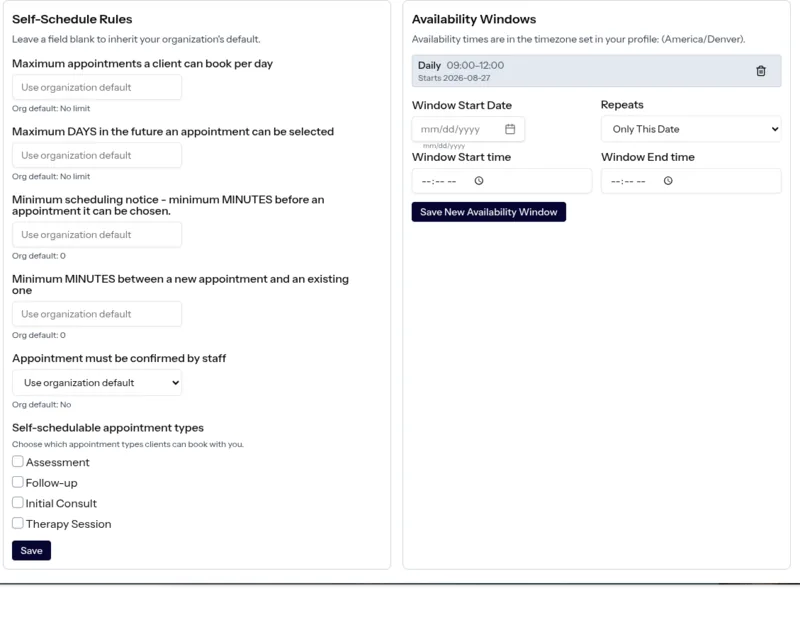
Let clients book themselves into availability windows you define, with separate rules per appointment type.
Publishing availability and letting clients claim it removes the email thread that finding a time normally requires.
The controls are what make it safe to switch on: availability windows rather than your whole calendar, and different rules per appointment type, so a new-client evaluation cannot be booked into a slot reserved for treatment or dropped on you with an hour's notice.
Scheduling & Reminders
Branded Email and Text Reminders
Send up to two email and text reminders per appointment, customized with your own logo and wording.
No-shows are the largest financial drain on a business, and most of them are forgetfulness rather than indifference. <strong>Two reminders</strong> -- one the day before, one shortly beforehand -- catch both failure modes.
Each reminder carries the join link directly, so nobody is searching their inbox at session time. Your logo and wording mean the message reads as coming from your organization.
Goals, Tagging & Notes
Goal and Interest Tagging
Tag clients by goal and by interest. Combined with resource tagging, that produces recommended materials in seconds, themed to the client, the season, or a holiday.
This is the mechanism the rest of the platform's planning speed rests on. Client tags describe what you are working on and what this person cares about; resource tags describe what each material targets and what it is themed around.
With both in place, planning becomes an intersection rather than a search: the target skill, filtered to something the client will actually engage with, optionally themed to the time of year. Minutes of preparation per session, recovered.
Goals, Tagging & Notes
Template-Based Note System
Build note templates such as S.O.A.P., giving administrators control over the structure staff document within.
Documentation quality varies between clinicians, and in an audit that variance is the risk. Templates move the standard from a training memo into the tool itself.
Administrators define the required structure -- S.O.A.P. or whatever your setting expects -- and staff complete it. New clinicians document correctly from their first session because the form asks the right questions.
Goals, Tagging & Notes
Notes Tied to Appointment or Date of Service
Every note attaches either to a specific appointment or to a date of service, so documentation and delivery always line up.
A note floating free of the service it documents is a reconciliation problem waiting for an audit. Binding each note to an appointment or an explicit date of service keeps documentation and delivery joined.
It also means gaps are visible: a delivered session with no note is a query the system can raise, rather than something discovered months later.
Goals, Tagging & Notes
Write Notes Anywhere, Auto-Saved
Write notes inside the session or afterwards, with auto-save everywhere so nothing is lost to a closed tab.
Documentation completed during the session is more accurate than documentation reconstructed that evening, and it is documentation you are not doing at nine o'clock.
But the day does not always allow it, so notes can be written afterwards too. Auto-save applies in both cases: a dropped connection or a closed tab mid-note costs nothing, which is what makes writing in-session realistic.
Goals, Tagging & Notes
Note Finalization
A finalization step that closes a note against further editing, supporting audit-safe documentation practice.
An indefinitely editable clinical record is a weak record. Finalization draws the line between a draft and the documented account of a service delivered.
Once finalized, a note is fixed, and what happened to it afterwards is visible. That is what an auditor, a payer, or a court is looking for: not just the content, but evidence that it was not quietly rewritten later.
Goals, Tagging & Notes
Share Notes and Recordings with Clients
Share an individual note or a session recording with a client through their portal, deliberately and one item at a time.
Transparency helps families stay engaged, and a caregiver who can rewatch how you cued a sound will cue it better at home.
Sharing is per item and explicit, so nothing reaches a client because a default was set wrongly. You choose the note or the recording, and it appears in that client's portal.
Contacts, Portal & Messaging
The Client Portal Is Optional
Contacts receive reminders with links to their online appointments whether or not they ever create a portal account.
Requiring an account before a client can attend is a barrier, and for some caseloads it is a wall. Elderly clients, families sharing one device, and anyone who has already forgotten one password will not get through it.
So the portal is opt-in. A contact with no account still gets reminders and still joins their session from a link. Families who want self-scheduling, invoices, and shared content can create an account; the rest simply attend.
Contacts, Portal & Messaging
One Contact, Multiple Clients
Link a contact and their portal account to several clients, so one parent account covers all of their children.
A parent with three children in therapy should not manage three logins, and a family with two parents plus a grandparent doing pickups should not be forced into one shared account.
Modelling contacts separately from clients handles both: several contacts can relate to one client, and one contact can relate to several clients. Each adult gets their own account and sees every child they are responsible for.
Contacts, Portal & Messaging
Self-Service Client Portal
Where enabled, clients can self-schedule, cancel, view shared content, see attendance reports, pay invoices, and manage their payment methods.
Every one of these is a task that otherwise arrives as a phone call to someone on your staff. Rescheduling, chasing an attendance summary for a school, taking a card number over the phone, re-sending an invoice.
Each capability is separately controlled, so the portal exposes exactly what your organization wants it to and nothing more. You can enable self-scheduling without allowing self-cancellation.
Contacts, Portal & Messaging
Secure In-App Messaging
Message securely between clients and staff and between staff members, with mass-messaging to clients when you need to reach everyone.
The alternative to secure messaging is not silence, it is clinicians using personal text messages and email for clinical communication, which is where most small-practice compliance problems actually begin.
Keeping the conversation in the platform means it is protected and retained with the record. Mass messaging covers the practice-wide cases: a closure, a schedule change, a policy update, without exporting your client list into a mail merge.
Payments & Invoicing
Professional Branded Invoices
Create invoices carrying your own logo, built either from appointments already in the schedule or from custom line items.
Because the schedule already records which sessions happened and how long they ran, an invoice can be assembled from data you never had to enter a second time.
Custom line items cover everything that is not an appointment: assessment reports, materials, travel, a package paid up front. The result carries your branding rather than looking like a system-generated receipt.
Payments & Invoicing
Send Invoices to Any Email
Send an invoice to a client's contacts or to any email address. Recipients can view and pay with or without a portal account.
The person paying is frequently not the person attending, and often not even in the household: a grandparent, a separated parent, a case manager, an agency finance inbox.
So invoices go to any address, and paying does not require an account. Removing that step is the single most effective thing you can do about how long an invoice sits unpaid.
Payments & Invoicing
Stripe Card Payments
Connect your own Stripe account to payments via card, Apple Pay, Google Pay, or Amazon Pay (based on what you enabled in Stripe), with invoices marked paid automatically on settlement.
Connecting your own Stripe account means funds settle directly to you and card data never lands in the Blink system. A paid invoice marks itself paid automatically. Plus, your staff or clients can <strong>save and update their payment methods</strong>, if they wish, which you can auto-charge for subsequent invoices.
Reporting
Integrated Reporting
Because scheduling, sessions, notes, and billing share one system, appointment and session history is easy to find and download.
Reporting is usually painful because the data lives in four products that do not agree with each other, and answering a simple question means exporting three spreadsheets and reconciling them by hand.
When the schedule, the session, the note, and the invoice are already joined, a question like "how many treatment sessions did this clinician deliver last quarter, and were they all documented" is a report rather than an afternoon.
Reporting
Complete Session Tracking
Every aspect of every session is recorded: participant arrival and departure times, resources used, widgets used, chat history, and recordings.
Captured automatically as a by-product of running the session, not as a data-entry task afterwards. Nobody has to remember to log anything.
That completeness is what makes the record useful under pressure. When attendance is disputed, when a payer asks what was delivered, or when a supervisor reviews a case that is not progressing, the answer is already recorded rather than reconstructed.
Reporting
Role-Scoped Report Access
Staff see data for themselves and their own clients. Administrators see everything. All of it is downloadable from the reporting suite.
Reporting is where access control quietly fails in most systems: permissions are enforced in the interface and then bypassed by an export that returns the whole database.
Scoping applies to the reports themselves. A clinician can pull everything relating to their own caseload without being able to pull the practice's. Administrators get the organization-wide view their job requires.
Security, HIPAA & Admin
Granular Staff Permissions
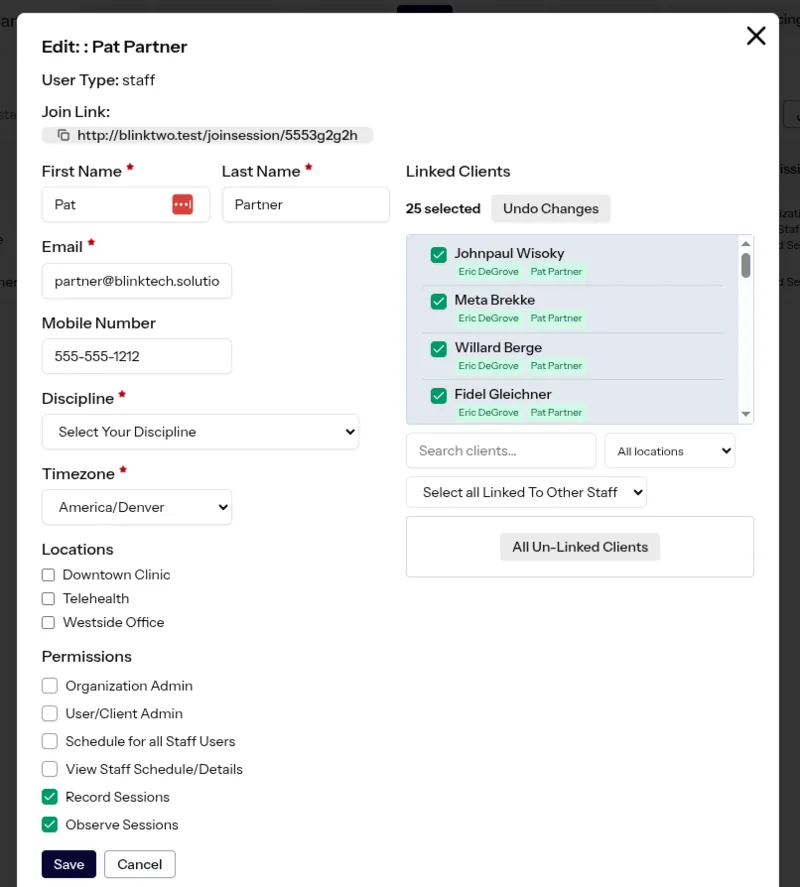
Grant or restrict each staff member's access to specific functions, information, and individual clients.
Access control that stops at job titles does not survive a real practice. A scheduler needs the calendar but not clinical notes. A supervising clinician needs one trainee's caseload but not the whole organization's. A contractor needs three clients and nothing else.
Permissions are granular down to the individual client, which is what lets you apply the minimum-necessary principle in practice rather than as an aspiration.
Security, HIPAA & Admin
HIPAA, GDPR and FERPA Compliant
Built to meet HIPAA, GDPR, and FERPA requirements, covering healthcare practices, EU data subjects, and school-based providers.
Three regimes because teletherapy crosses three worlds. HIPAA governs protected health information in US healthcare. FERPA governs student education records, which is what a school-based SLP or OT is actually creating. GDPR applies once an EU data subject is involved.
Worth being precise about what any of this means: the platform supplies the technical and organizational safeguards. Your practice remains responsible for its own risk analysis, policies, workforce training, and day-to-day handling. No software can be compliant on your behalf.
Security, HIPAA & Admin
Signed Business Associate Agreement
A signed Business Associate Agreement is available to practices handling protected health information.
Any vendor that creates, receives, maintains, or transmits protected health information on your behalf is a business associate under HIPAA, and you need an executed BAA with them. A vendor unwilling to sign one cannot lawfully be used for PHI, which is precisely the problem with consumer video tools.
If your organization requires an executed agreement before on-boarding, ask and we will provide the current one for your review.
Security, HIPAA & Admin
Access Logging and Strong Encryption
Access is logged and data is encrypted at every level, in transit and at rest.
Encryption protects data from interception and from theft of the underlying storage. Access logging addresses the harder and more common problem: an authorized person looking at a record they had no business opening.
Without a log there is no way to investigate that, and an incident you cannot investigate is one you cannot report accurately either. Both are baseline obligations here rather than a paid upgrade.
Security, HIPAA & Admin
Two-Factor and Biometric Authentication
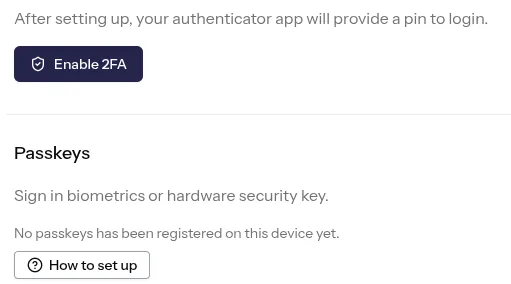
Require two-factor authentication for staff accounts, with support for biometric authentication.
Credential compromise is the most common route into a healthcare system, and a password alone is not a control. Requiring a second factor across staff accounts closes it, and requiring it centrally means it does not depend on each clinician opting in.
Biometric support matters for adoption: a fingerprint or face unlock is fast enough that clinicians logging in many times a day stop resenting the requirement, which is what keeps it switched on.
Enterprise
White-Label Branding
Run Blink Session entirely under your own brand, including a custom domain and email addresses.
For an agency, a district, or a health system, the platform should be invisible. Clients are engaging with your organization, and encountering a third-party brand mid-way through undermines that.
White-labeling covers the whole client-facing surface: your branding, your domain, and email that comes from your addresses. Clients and families see your practice throughout, which also improves reminder deliver-ability and how often those emails get opened.
Enterprise
Single Sign-On
Allow your staff log into Blink Session using your company's identity provider, such as Google, Microsoft Entra ID, Okta, SMAL, or another enterprise service.
Single Sign On (SSO) makes life easier for IT and staff, especially in settings with strict compliance and security requirements. This add-on enables seamless integration with your existing identity provider (including SAML 2.0, OpenID Connect, Okta, and Microsoft Entra ID). Streamline employee onboarding, eliminate weak or reused passwords, and gain full administrative control with automated user provisioning (SCIM) and centralized session management.
Enterprise
Implementation & Teletherapy Consulting
Streamline your rollout with custom system setup, workflow configuration, and expert teletherapy consulting tailored to your practice..
Personalized implementation and expert teletherapy consulting. Our team works directly with your organization and admin staff to configure custom workflows, optimize interactive tools, and establish HIPAA-compliant session environments tailored to your specialty. From initial EHR and calendar integration to staff training and clinical best-practice strategy, we ensure a seamless rollout so your clinicians can focus on delivering high-quality client care from day one.
No features match that search.
Screens
What it looks like to run a practice on Blink
The parts of the product you spend the most time in: the resource catalog, the
client record, reporting, and the settings that decide what your staff and
clients can do.
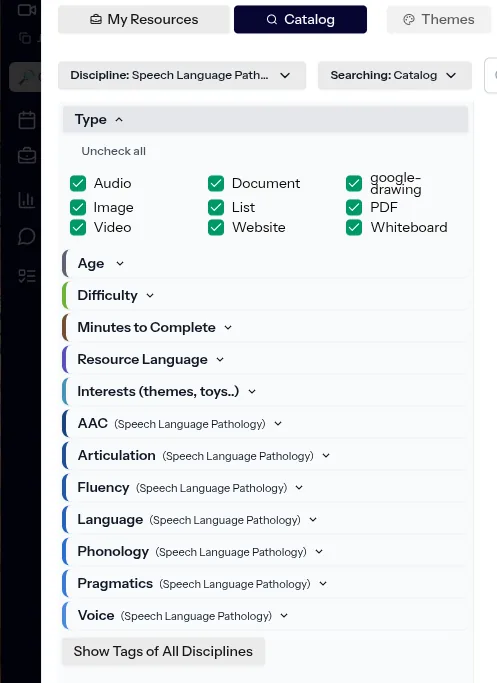
Filter the catalog by type, age, difficulty, interest, and clinical target.
One client record: goals, resource queue, notes, appointments, and invoices.
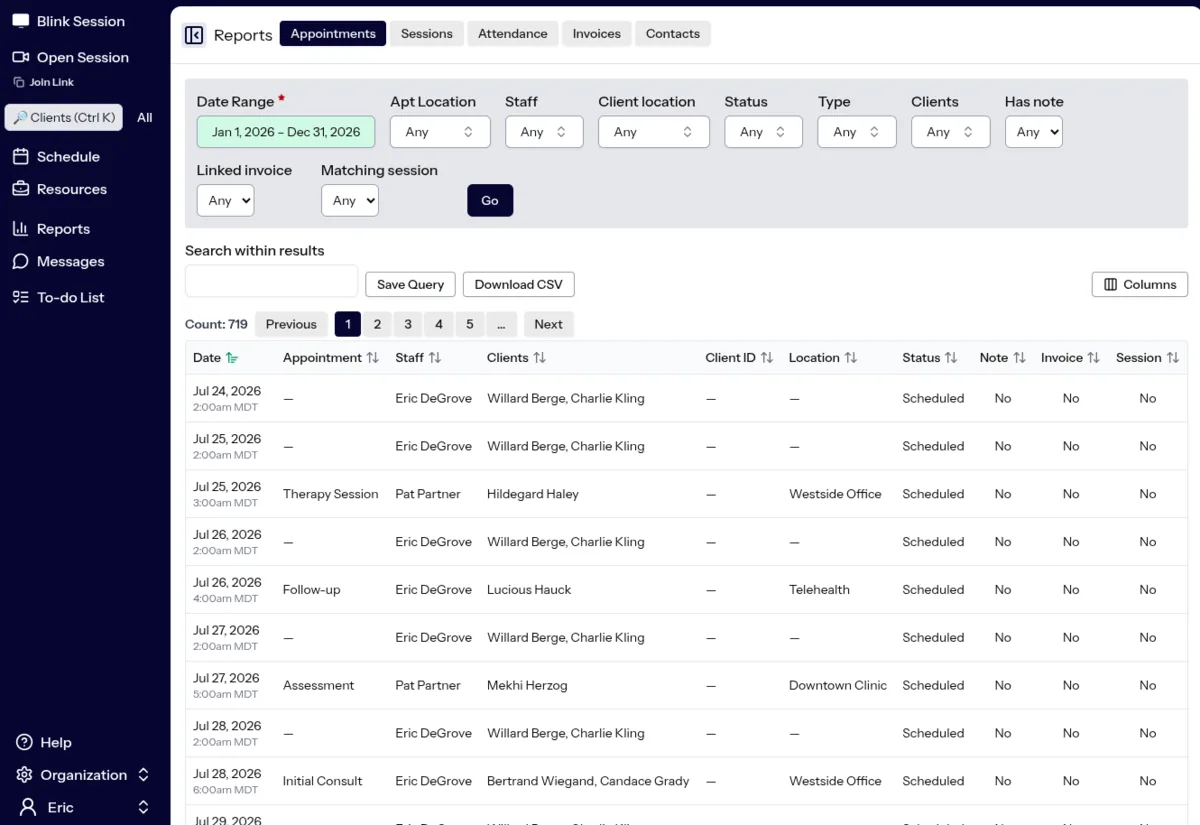
Filter any slice of appointment and session history, then export it.
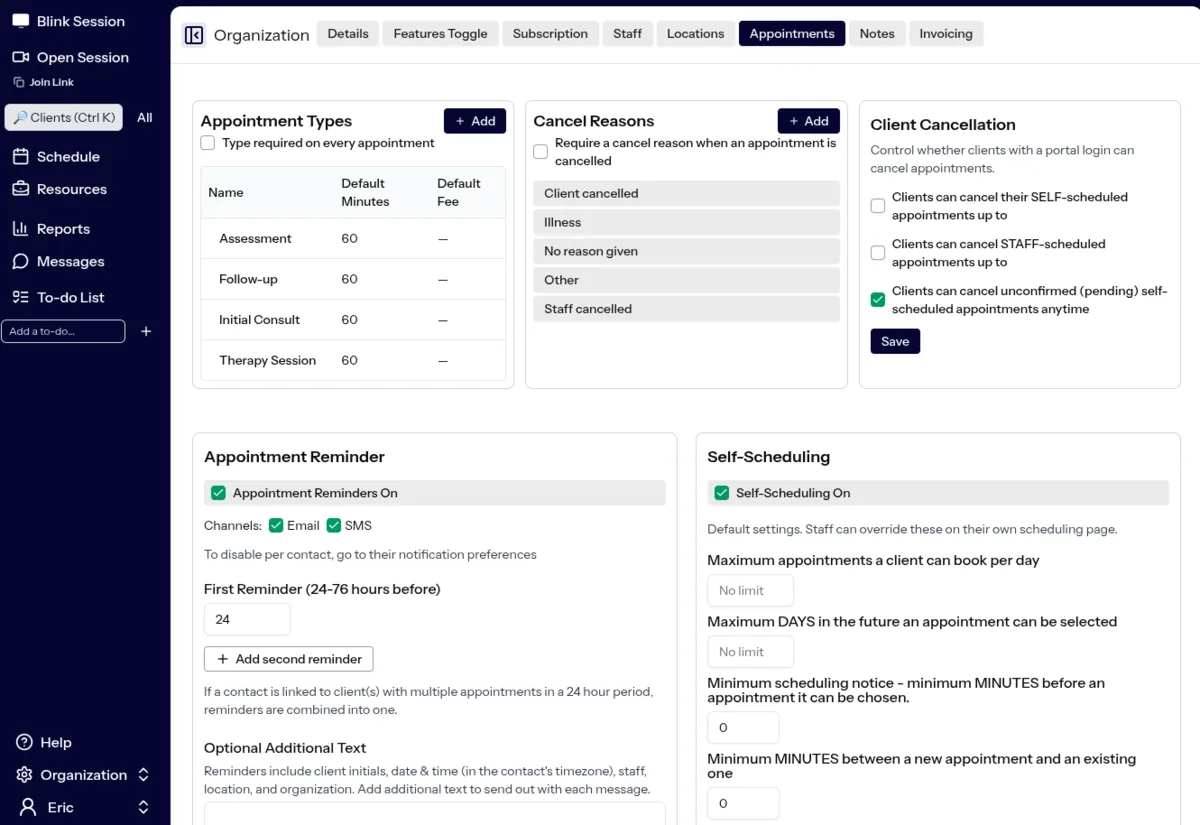
Define your own appointment types and cancellation rules so reporting matches your practice.
Grant each staff member only the functions and clients their role needs.
Publish availability windows and control exactly what clients can book.
Group sessions for social skills, co-treatment, and small-group instruction.
Two-factor authentication and passkeys for every staff account.